
If Yes is selected, the system will display a list of rejected documents pertaining to the case file. The user must select a rejected document from the list to continue.
The Step 1: Case Information Page allows the user to enter all of the pertinent information about the case.
To commence a new Bill of Sale case:
Go to the Step 1: Case Information Page.
(Quick Access >> Commence a New Case)
Indicate whether the user is re-filing a document that has been previously rejected by the Court. Select NO as this is a new case file.
|
If Yes is selected, the system will display a list of rejected documents pertaining to the case file. The user must select a rejected document from the list to continue. |
Select Bill of Sale from the Case Type dropdown list. After selection, the rest of the sections of the page will be displayed.
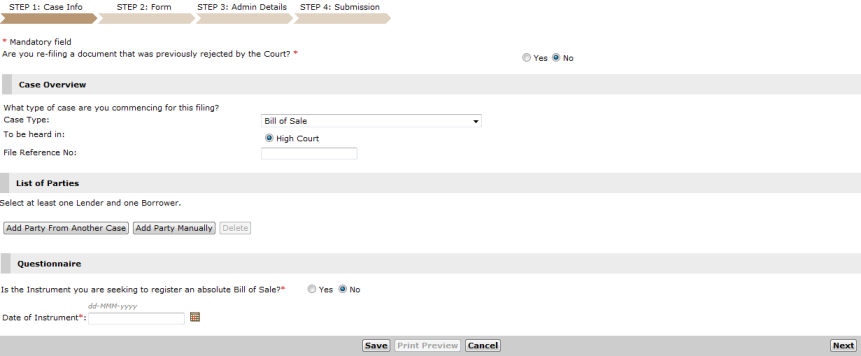
Step 1: Case Information Page - Bill of Sale
Enter the File Reference No, if available. The reference number entered will be the same number used by Law Firms in subsequent case filing.
|
The File Reference Number is an optional field and can be left blank. |
Party Information
In the List of Parties section, click Add Party From Another Case to add a party from an existing case, or click Add Party Manually to enter the party’s information.
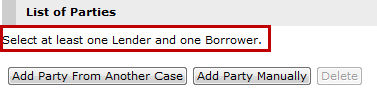
List of Parties Section
|
Refer to the Add Party from Another Case topic for the steps and more information. Refer to the Add Party Manually topic for the steps and more information. |
The added parties will be on the List of Parties section.

List of Parties Section - Added Parties