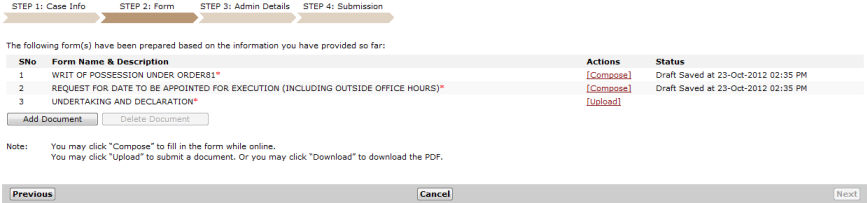
Once done, click Next. The user will be directed to the Step 2: Form Page.
Step 2: Form Page
Depending on the type of eForm or document listed on the page, click the Action link to perform the necessary action.
|
Refer to Step 2: Form for more information about the functions that can be performed in the Step 2: Form Page. |
|
The Next button will only be enabled once the main documents are uploaded or composed. |
Click Next. The Step 3: Admin Details Page will be displayed. This page allows the user to update the Hearing Details, indicate urgency, request a Backdate, eServe and request an Exemption or Waiver of fees.
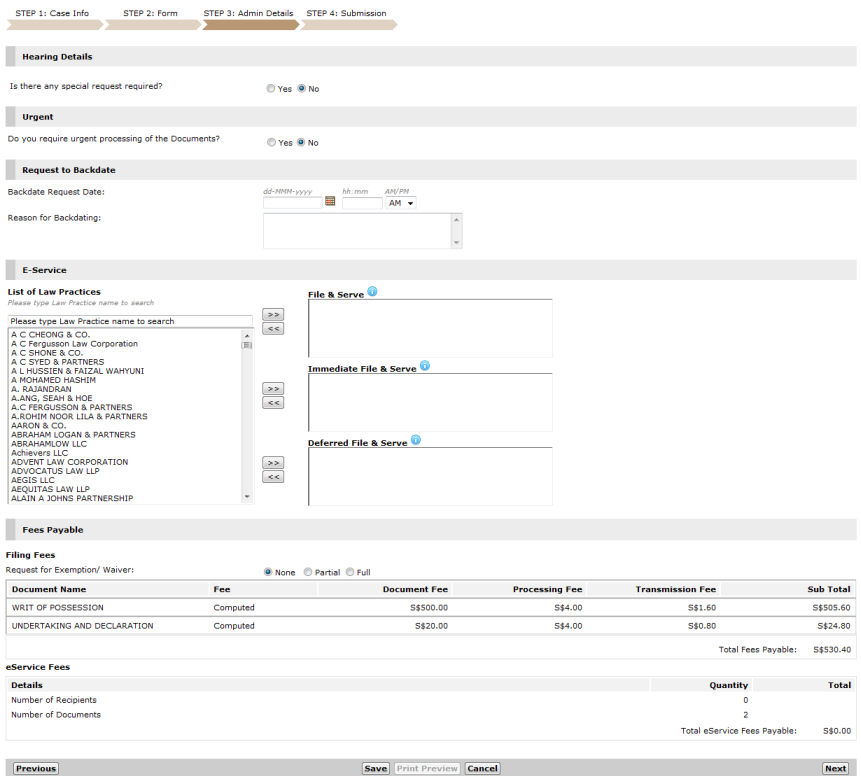
Step 3: Admin Details Page
Enter all of the necessary information on the Step 3: Admin Details page.
|
Refer to Step 3: Admin Details for more information about the functions that can be performed in the Step 3: Admin Details Page. |
After filling out the admin details, click Next. The Step 4: Submission page is displayed. This page shows the different information added in the case. Click the respective links to view the details.
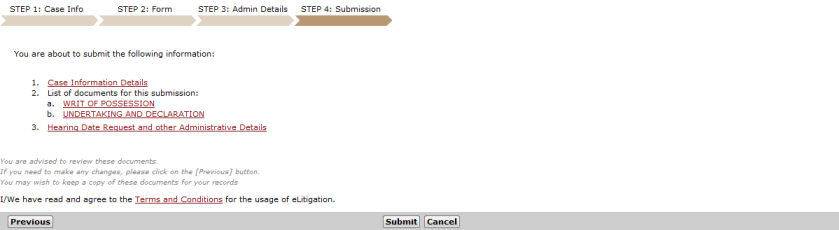
Step 4: Submission Page
Click Submit. A confirmation message will be displayed.
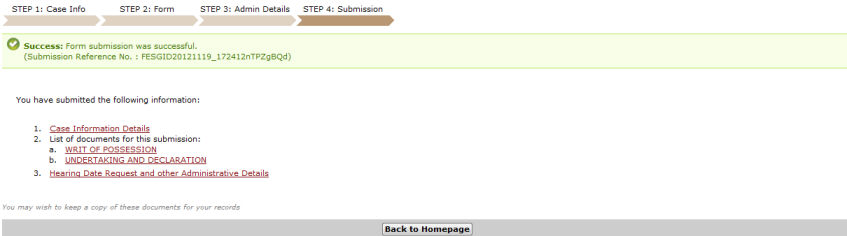
Filing a Writ of Execution Confirmation Message
Click Back to Homepage to return to the eLitigation Main Page.

